
Users with the Reset Password Administrative Role are able to change or reset users' passwords. Users with the Super Admin Administrative role along with the Reset Password Administrative role can change the password for the users with the Super Admin Role.
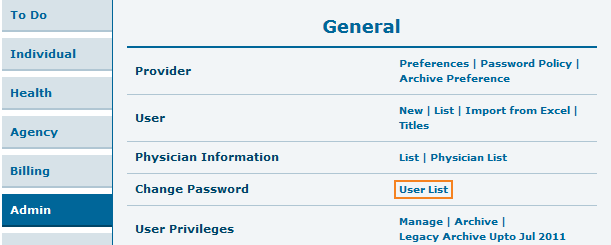
- Click on the User List link beside the Change Password label on the Admin tab.
Oversight users will have to click on the User List link under the 'Change Password' area on the Oversight Dashboard.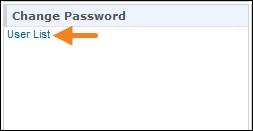
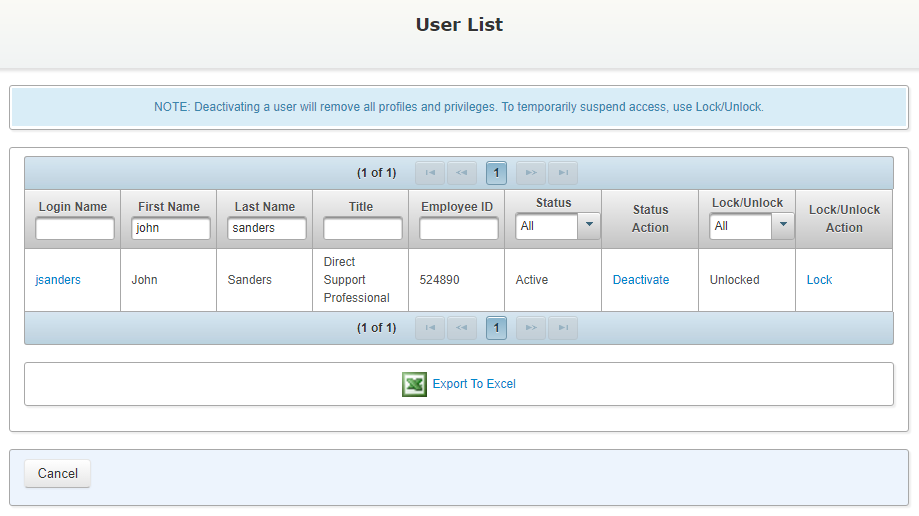
- On the 'User List' page, you may enter one or multiple search parameters in the header row to find the user. Once you have entered the parameter(s) the page will show user information matching your search. Click on the Login Name to select a user.
If you are seeing the error message Sorry! You do not have sufficient privilege to perform the action when trying to change the password for a user, it may be for the following reasons:
- You are trying to change the password of an 'Admin Locked' user. 'Admin Locked' users will have to be unlocked by a user with the User Administrative Role first.
- You are clicking on the Unlock option while being assigned with only the Reset Password Administrative Role. Only users with the User Administrative Role will be able to perform the Unlock action directly.
- You are trying to change the password of a Super Admin without being assigned the Super Admin Administrative Role. Only a Super Admin can change another Super Admin's password.
- On the Change Password page, enter a temporary password in the New Password field, and retype it in the in the Confirm New Password field. You may select Yes for the Ignore Password Policy option to override the minimum password requirements set in your agency's Password Policy. Once you are done, click on the Change Password button to save the new password.
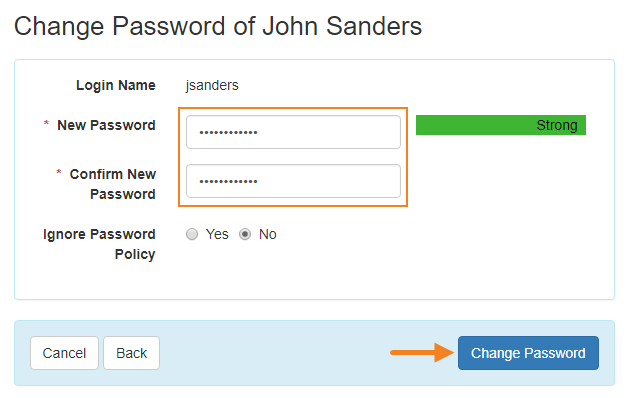
- If the passwords entered in the two fields match each other, you will be shown a success message.

The user whose password you have reset will have to use the temporary password you entered to log into the system. Once they log in, they will be prompted to enter the password they want to use for subsequent logins. The validity of the temporary password will depend upon the Number of days before password expires fields in the agency's Password Policy. Release 2019.5.0: If you reset a user's password while they are logged into the system, then they will be logged out of that session automatically right after they take their next action.
- If the passwords entered in the two fields do not match each other, you will encounter a warning message saying: New Password and Confirm Password do not match, please try again.

Comments
0 comments
Please sign in to leave a comment.